Deploy Your Own LLM on AWS: The Complete No-BS Guide
Cut through the noise and deploy your own LLM on AWS. This no-BS guide covers SageMaker, EC2, cost optimization, and practical steps to master your AI future.
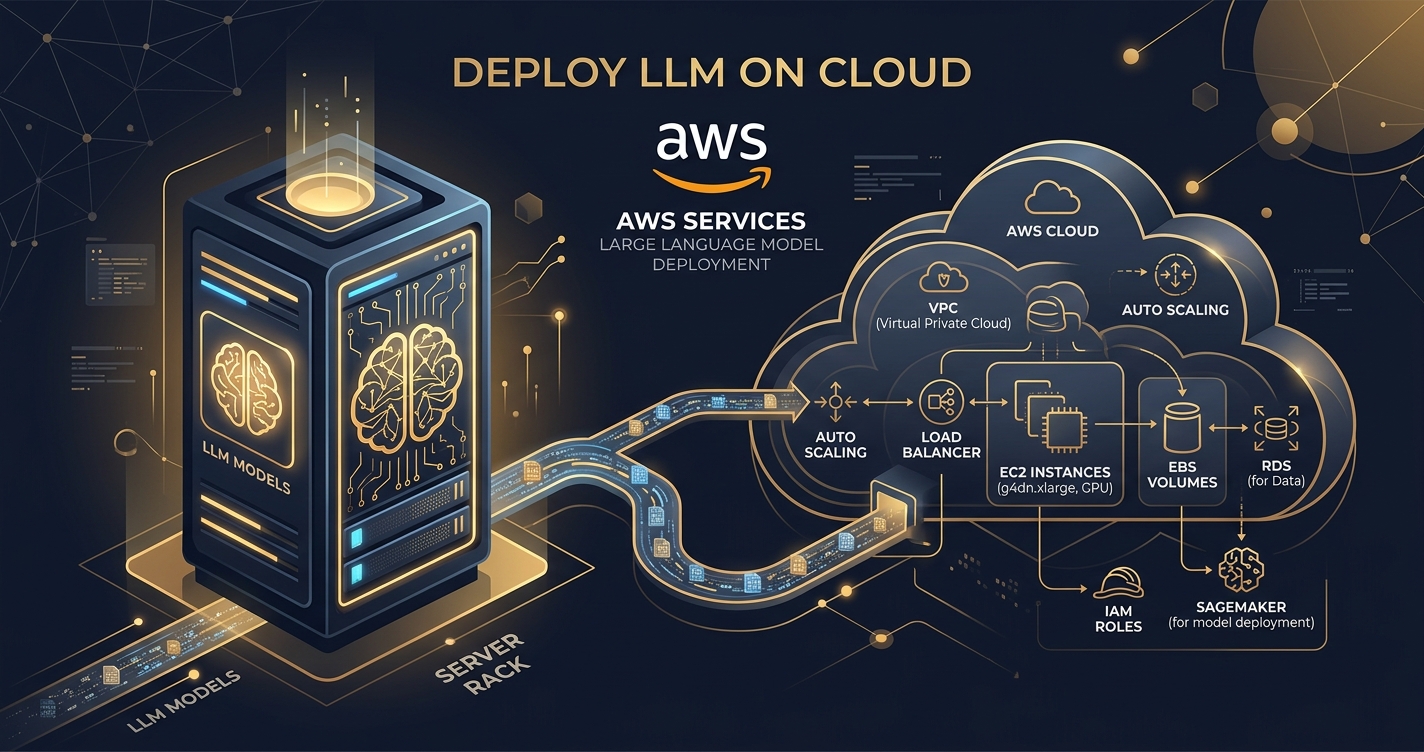
Alright, listen up. You’ve been playing with those slick LLM APIs, haven’t you? Tossing your precious data into someone else’s black box, paying per token, and wondering if there’s a better way. The answer, my friend, is a resounding yes. It’s time to stop renting and start owning.
Deploying your own Large Language Model (LLM) on AWS isn’t just for the big shots. It’s for anyone who craves control, demands privacy, and wants to fine-tune their AI destiny without corporate fluff or an endless meter ticking. This isn’t some fluffy marketing piece; this is the complete, no-BS guide to getting your LLM running on AWS, whether you’re a SageMaker enthusiast or an EC2 bare-metal brawler. We’ll cover everything from choosing your model to crushing your cloud bill. Let’s get to work.
Why Bother Deploying Your Own LLM on AWS? The Hard Truths.
Forget the hype for a second. Why would a sane person take on the perceived complexity of self-hosting an LLM when there are perfectly good APIs out there? Simple: control, cost, and customization.
- Unfettered Control: When you deploy your own model, you dictate the terms. Your data stays within your AWS environment. No more wondering what happens to your prompts, what data is used for “improvement,” or dealing with sudden API changes that break your application. This is your playground, your rules.
- Cost Optimization (Eventually): Yes, initial setup can seem daunting. But for consistent, high-volume inference, especially with smaller, optimized models, self-hosting often becomes dramatically cheaper than per-token API pricing. We’re talking orders of magnitude difference once you scale. A recent case study by a major tech company demonstrated savings of up to 80% on inference costs by migrating from third-party APIs to self-hosted LLMs on AWS.
- Tailored Performance & Customization: Want to fine-tune a model on your proprietary dataset? Want to implement a custom inference pipeline? Want to use a bleeding-edge model that hasn’t made it to mainstream APIs yet? Self-hosting gives you that power. You’re not limited by what a vendor offers; you’re limited only by your imagination and engineering prowess.
- No Vendor Lock-in (Sort Of): While you’re locking into AWS, you’re not locked into a specific LLM vendor’s API. You can swap out models, experiment with different architectures, and maintain flexibility. Your infrastructure is yours, and the models are just software running on it.
This isn’t about shunning APIs entirely; it’s about making an informed choice when the stakes are high, the volume is massive, or the need for a truly custom solution arises.
What LLM Should You Deploy? Choosing Your Weapon Wisely
Before you even think about AWS instances, you need a model. This is where most people get overwhelmed. Cut the crap. Here’s how to pick:
Open-Source vs. Proprietary (Open-Weight)
We’re focusing almost exclusively on open-weight models. These are models where the weights are released, allowing you to run them anywhere. Proprietary models (like OpenAI’s GPT-4, Anthropic’s Claude) are API-only.
- Open-Weight Champions: The landscape is evolving daily, but current titans include:
- Llama 3 (Meta): Available in 8B and 70B parameters, with 400B+ coming. Excellent performance, strong community. Requires a Meta license for commercial use (usually free, just a click-through).
- Mixtral 8x7B (Mistral AI): An expert-of-experts model that delivers performance competitive with much larger models, but with lower inference costs due to its sparse activation. A personal favorite for many.
- Mistral 7B (Mistral AI): A compact powerhouse. Fast, efficient, and surprisingly capable for its size.
- Gemma (Google): Google’s open-weight response, based on Gemini’s architecture. Good performance for its size.
Model Size vs. Performance vs. Cost: The Eternal Triangle
This is the critical trade-off.
- Smaller Models (e.g., 7B-13B parameters):
- Pros: Lower VRAM requirements, faster inference, cheaper GPUs, easier to fine-tune.
- Cons: Less general knowledge, might struggle with complex reasoning or long contexts.
- Ideal for: Specific tasks, chatbots, summarization, or when budget is paramount.
- Medium Models (e.g., 34B-70B parameters):
- Pros: Significantly better performance than small models, good balance of capability and cost.
- Cons: Higher VRAM, slower inference, more expensive GPUs.
- Ideal for: General-purpose assistants, advanced reasoning, more nuanced tasks.
- Large Models (e.g., 70B+ parameters):
- Pros: State-of-the-art performance, deep understanding, massive context windows.
- Cons: Very high VRAM, extremely expensive GPUs (often requiring multiple), slow inference.
- Ideal for: Cutting-edge research, applications where absolute best performance is non-negotiable.
The Magic of Quantization
Don’t ignore quantization. This is the art of reducing a model’s precision (e.g., from 16-bit floating point to 8-bit or even 4-bit integers) to dramatically cut down its VRAM footprint and speed up inference.
- Example: A Llama 3 70B model might require ~140GB of VRAM in FP16. Quantized to 4-bit, it could run on ~40GB. This means you can use fewer, or less powerful (read: cheaper) GPUs. The trade-off is a slight dip in quality, but often negligible for many applications. Tools like
llama.cppand Hugging Face’sbitsandbytesmake this accessible.
Actionable Advice: Start small. Deploy a 7B or 13B model first. Master the deployment, then scale up to larger models if your application truly demands it. Don’t overspend on a 70B model if a 13B quantized to 4-bit can do the job.
SageMaker vs. EC2: Which Path to Take?
This is the AWS LLM deployment dilemma. Do you go with the fully managed service, SageMaker, or roll up your sleeves with raw EC2 instances? There’s no single “best” answer, only the right tool for your specific job.
| Feature | AWS SageMaker | AWS EC2 |
|---|---|---|
| Ease of Use | High (Managed service, less DevOps) | Low (Manual setup, significant DevOps) |
| Cost Control | Good (Pay-per-use, but managed overhead) | Excellent (Granular control, Spot/Reserved instances) |
| Flexibility | Moderate (Bound by SageMaker’s abstractions) | High (Full control over OS, software stack) |
| Scalability | High (Built-in auto-scaling for endpoints) | Moderate (Requires manual setup with Auto Scaling Groups) |
| Maintenance | Low (AWS handles patching, infrastructure) | High (You manage everything from OS to dependencies) |
| Ideal Use Case | Production deployments, MLOps integration, rapid iteration | Custom environments, deep cost optimization, specific hardware/software needs, batch processing |
Is SageMaker the “Easy Button” for LLM Deployment?
Yes, absolutely. If you want to deploy a model with minimal fuss and integrate it into a broader MLOps pipeline, SageMaker is your huckleberry. It handles the heavy lifting: infrastructure provisioning, environment setup, model hosting, and endpoint management.
- Pros:
- Managed Service: AWS takes care of the underlying infrastructure, patching, and scaling.
- MLOps Features: Built-in tools for model versioning, monitoring, A/B testing, and continuous integration/delivery.
- Simple Endpoints: Turn your model into a scalable, low-latency API endpoint with a few lines of code.
- JumpStart: Quickly deploy popular open-source models (like Llama 2/3, Mixtral) with pre-built solutions.
- Cons:
- Cost: SageMaker’s convenience comes at a premium. The managed overhead can make it more expensive than a finely tuned EC2 setup, especially for long-running, stable workloads.
- Less Control: You’re working within SageMaker’s abstractions. If you need highly specific OS configurations, custom kernels, or intricate software stacks, you might hit a wall.
- Vendor Lock-in (within AWS): While not model lock-in, you’re deeply embedded in the SageMaker ecosystem.
When to use SageMaker: When you prioritize speed of deployment, robust MLOps features, and minimal operational overhead. If you’re building a production application and want to focus on your model, not your infrastructure, SageMaker is your best bet.
When Does Raw EC2 Power Make More Sense?
When you demand absolute control, need to squeeze every last drop of performance or cost savings, or have highly specialized requirements, EC2 is your battleground. This is where the true tech gladiators operate.
- Pros:
- Max Control: You choose the OS, the exact software stack, the drivers, everything.
- Cost Optimization: Leverage Spot Instances for massive savings (up to 90%!) for fault-tolerant workloads, or Reserved Instances/Savings Plans for predictable, long-term savings.
- Customization: Run any container, use any inference server (Text Generation Inference,
llama.cppserver, vLLM), or build your own from scratch. - Specific Hardware: Access to the latest GPU instances as soon as they’re available, without SageMaker potentially lagging.
- Cons:
- More DevOps: You’re responsible for everything: OS installation, security patching, driver updates, Docker setup, scaling, monitoring.
- Higher Learning Curve: Expect to spend time configuring and troubleshooting.
- Manual Scaling: Requires setting up Auto Scaling Groups, load balancers, and custom metrics, which is more complex than SageMaker’s built-in scaling.
When to use EC2: When you’re a seasoned DevOps pro, have a tight budget, need extreme customization, or are running batch inference jobs that can tolerate interruptions (Spot Instances).
How Do You Select the Right AWS Instance for Your LLM?
This isn’t about picking the biggest or most expensive. It’s about picking the right one. For LLMs, VRAM (GPU memory) is king. Your model’s size (after quantization) dictates your VRAM needs, which in turn dictates your instance type.
GPU Instance Families: The Heavy Hitters
AWS offers several GPU-accelerated instance families. Focus on these:
- G5 Instances: Powered by NVIDIA A10G GPUs. Excellent price-performance for many LLMs. A single
g5.xlargehas 24GB VRAM.g5.12xlargeoffers 4x A10G (96GB VRAM total). - P3 Instances: Older generation with NVIDIA V100 GPUs. Still viable, but G5 usually offers better value.
- P4d Instances: NVIDIA A100 GPUs. Serious power, serious cost.
p4d.24xlargehas 8x A100 (640GB VRAM total). For very large models or high-throughput needs. - P5 Instances: NVIDIA H100 GPUs. The bleeding edge, astronomical performance, and cost. For the absolute most demanding workloads.
VRAM and Instance Selection Chart (Rough Guide)
| Model Size (Quantized) | VRAM Needed (Approx.) | Recommended EC2 Instance (Approx.) | SageMaker Equivalent |
|---|---|---|---|
| 7B (4-bit) | 5-8GB | g5.xlarge | ml.g5.xlarge |
| 13B (4-bit) | 8-12GB | g5.xlarge or g5.2xlarge | ml.g5.2xlarge |
| Mixtral 8x7B (4-bit) | 30-40GB | g5.8xlarge | ml.g5.8xlarge |
| 70B (4-bit) | 40-50GB | g5.12xlarge or g5.24xlarge | ml.g5.12xlarge |
| 70B (FP16) | 140GB+ | p4d.24xlarge (multi-GPU) | ml.p4d.24xlarge |
Note: VRAM needs are highly dependent on batch size, context window, and specific inference engine. Always test.
Cost Considerations: Don’t Be a Chump
- On-Demand: Pay by the second. Great for development, testing, or unpredictable workloads. Highest cost per hour.
- Spot Instances: Leverage unused AWS capacity. Up to 90% cheaper than On-Demand. The catch? AWS can reclaim the instance with a 2-minute warning. Ideal for fault-tolerant batch inference, non-critical workloads, or development where occasional interruptions are fine.
- Reserved Instances (RIs) / Savings Plans: Commit to using a certain amount of compute for 1 or 3 years. Significant discounts (up to 72%). Perfect for stable, predictable production workloads.
Actionable Advice: For initial deployment and testing, use On-Demand. For production with stable load, explore RIs/Savings Plans. For batch jobs or non-critical tasks, Spot Instances are your best friend.
The Brass Tacks: Deploying an LLM on SageMaker (Step-by-Step)
Let’s get a Llama 3 8B model running. We’ll use the SageMaker Python SDK, which is the most common way to interact with SageMaker programmatically.
Prerequisites:
- An AWS account.
- AWS CLI configured with appropriate permissions (SageMakerFullAccess or more granular IAM roles).
- Python environment with
sagemakerSDK installed (pip install sagemaker).
Step 1: Choose Your Model and Container
SageMaker can use pre-built containers (often from Hugging Face for LLMs) or custom ones. For this, we’ll leverage Hugging Face’s Text Generation Inference (TGI) container, which is optimized for LLMs.
import sagemaker
from sagemaker.huggingface import HuggingFaceModel, get_huggingface_llm_image_uri

# Get the SageMaker session and execution role
sess = sagemaker.Session()
role = sagemaker.get_execution_role()

# Define your model details
# You can find these on Hugging Face Hub (e.g., meta-llama/Llama-3-8B-Instruct)
# Make sure to accept the terms on HF Hub for Meta models.
llm_model_id = "meta-llama/Llama-3-8B-Instruct"
# Adjust for specific regions, e.g., "us-east-1"
llm_image = get_huggingface_llm_image_uri("huggingface", version="1.4.2", region=sess.boto_region_name)

# Define the model configuration (these are crucial for TGI)
config = {
    'HF_MODEL_ID': llm_model_id,
    'SM_NUM_GPUS': '1', # Or more depending on instance and model size
    'MAX_INPUT_LENGTH': '2048',
    'MAX_TOTAL_TOKENS': '4096',
    'MAX_BATCH_TOTAL_TOKENS': '8192',
    'MAX_CONCURRENT_REQUESTS': '4',
    # Enable quantization for better performance/lower memory
    'HF_MODEL_QUANTIZE': 'bitsandbytes' # or 'gptq' if using GPTQ-quantized model
}
Step 2: Create the SageMaker Model
This step registers your model with SageMaker.
# Create the HuggingFaceModel object
huggingface_model = HuggingFaceModel(
    image_uri=llm_image,
    env=config,
    role=role,
    sagemaker_session=sess
)
Step 3: Deploy the Model to an Endpoint
Now, deploy it to a real-time inference endpoint. Pick an instance type suitable for your model. For Llama 3 8B (quantized), ml.g5.2xlarge (24GB VRAM) is a good starting point.
# Deploy model to an endpoint
# instance_type: Choose based on your model's VRAM requirements
# initial_instance_count: Start with 1, scale later
predictor = huggingface_model.deploy(
    initial_instance_count=1,
    instance_type="ml.g5.2xlarge", # Adjust as needed
    container_startup_health_check_timeout=300, # Give it time to download model
    endpoint_name="llama3-8b-instruct-endpoint" # A unique name for your endpoint
)

print(f"Endpoint name: {predictor.endpoint_name}")
This deployment can take 10-20 minutes as SageMaker provisions the instance, pulls the container, and downloads the model weights.
Step 4: Test Your Endpoint
Once the endpoint status is InService, you can invoke it.
# Example prompt
prompt = "Explain the difference between a managed service and an unmanaged service in cloud computing."

payload = {
    "inputs": prompt,
    "parameters": {
        "do_sample": True,
        "top_p": 0.9,
        "temperature": 0.2,
        "max_new_tokens": 512,
        "repetition_penalty": 1.03,
    }
}

# Invoke the endpoint
response = predictor.predict(payload)
print(response)

# Expected output structure: [{'generated_text': '...'}]
print(response[0]['generated_text'])
Step 5: Clean Up (Crucial for Cost!)
Don’t forget this! SageMaker endpoints run 24/7 and cost money.
predictor.delete_endpoint()This is the SageMaker way: elegant, integrated, and powerful.
Going Bare Metal: Deploying an LLM on EC2 (Step-by-Step)
This is for the hands-on crowd. We’ll deploy Mixtral 8x7B using Hugging Face’s Text Generation Inference (TGI) Docker image.
Prerequisites:
- An AWS account.
- AWS CLI configured.
- SSH client.
Step 1: Launch an EC2 Instance
We need a GPU instance. For Mixtral 8x7B (quantized, ~30-40GB VRAM), a g5.8xlarge is a good choice (it has 48GB VRAM).
- AMI: Use a Deep Learning AMI (Ubuntu). This comes pre-installed with NVIDIA drivers, CUDA, Docker, and other ML necessities. Search for “Deep Learning AMI (Ubuntu 20.04) GPU” in your region.
- Instance Type:
g5.8xlarge - Storage: 100GB+ GP3 SSD (enough for OS and model weights).
- Security Group:
- SSH (Port 22) - your IP only.
- Custom TCP (Port 80/443 or your chosen inference port, e.g., 8080) - your IP or wider access if you put it behind a load balancer.
- Key Pair: Create or use an existing one.
You can launch this via the AWS Console or AWS CLI. For CLI, it’s a long command, but conceptually:
aws ec2 run-instances --image-id <ami-id> --instance-type g5.8xlarge --key-name <your-key> --security-group-ids <sg-id> --block-device-mappings ...
Step 2: SSH into Your Instance
ssh -i /path/to/your-key.pem ubuntu@<your-ec2-public-ip>Step 3: Prepare the Environment (Mostly Done with DLAMI)
The Deep Learning AMI typically has Docker and NVIDIA Container Toolkit pre-installed. Verify:
docker --version
nvidia-smi
docker run --rm --gpus all ubuntu nvidia-smi # Test GPU access within Docker
If docker or nvidia-smi don’t work, you’d need to install them manually (Google “install docker ubuntu” and “install nvidia container toolkit ubuntu”).
Step 4: Download Model Weights (Optional, TGI pulls them)
TGI can pull models directly from Hugging Face Hub. However, for large models, it’s often better to pre-download them to a persistent volume (if you’re stopping/starting instances) or a specific directory to avoid re-downloading. We’ll let TGI handle it for simplicity.
Step 5: Run the LLM with Text Generation Inference (TGI)
TGI is a robust, performant inference server from Hugging Face.
# Define your model, ensuring you accept any terms on Hugging Face Hub first
MODEL_ID="mistralai/Mixtral-8x7B-Instruct-v0.1" # Or a quantized version if available
VOLUME=/data # Or any directory you want to persist model weights in
NUM_GPUS=$(nvidia-smi --query-gpu=count --format=csv,noheader) # Auto-detect GPUs

# Create volume if it doesn't exist (for model caching)
sudo mkdir -p $VOLUME
sudo chmod -R 777 $VOLUME # Adjust permissions as needed

docker run --gpus all \
  --shm-size 1g \
  -p 8080:80 \
  -v $VOLUME:/data \
  --env HF_MODEL_ID=$MODEL_ID \
  --env NUM_GPUS=$NUM_GPUS \
  --env MAX_INPUT_LENGTH=2048 \
  --env MAX_TOTAL_TOKENS=4096 \
  --env MAX_BATCH_TOTAL_TOKENS=8192 \
  --env HUGGING_FACE_HUB_TOKEN=<YOUR_HF_TOKEN> \ # Required for gated models like Llama 3
ghcr.io/huggingface/text-generation-inference:1.4 \ # Use the latestSources
> Want more like this?
Get the best AI insights delivered weekly.
By subscribing, you agree to our Privacy Policy. You can unsubscribe at any time.
> Related Articles
Autonomous Business Agents Need a Control Plane Before They Need More Tools
Pion's research preview connects persistent agents to business systems. Evidence from real vending, retail, and cafe trials shows why monitoring and bounded authority are the core product.
AI Systems Need Three Trust Layers: Verifiable Work, Managed Permissions, and Private Credentials
A cipher-solving agent, GitHub's enterprise controls, and Signal's zkgroup work point to the same production lesson: intelligence needs enforceable trust boundaries.
RAG Query-Rewriting Evaluation: Prove the Rewrite Finds Better Evidence
Query rewriting often sounds smarter while retrieving worse evidence. Evaluate rewrites against relevant documents, failure slices, and final grounded answers before shipping them.
Tags
> Stay in the loop
Weekly AI tools & insights.