AI Automation with Zapier and Make: The No-Code Guide That Actually Works
Tired of manual drudgery? This guide cuts the BS, showing you how to supercharge your business with AI automation using Zapier and Make. No code, just results.
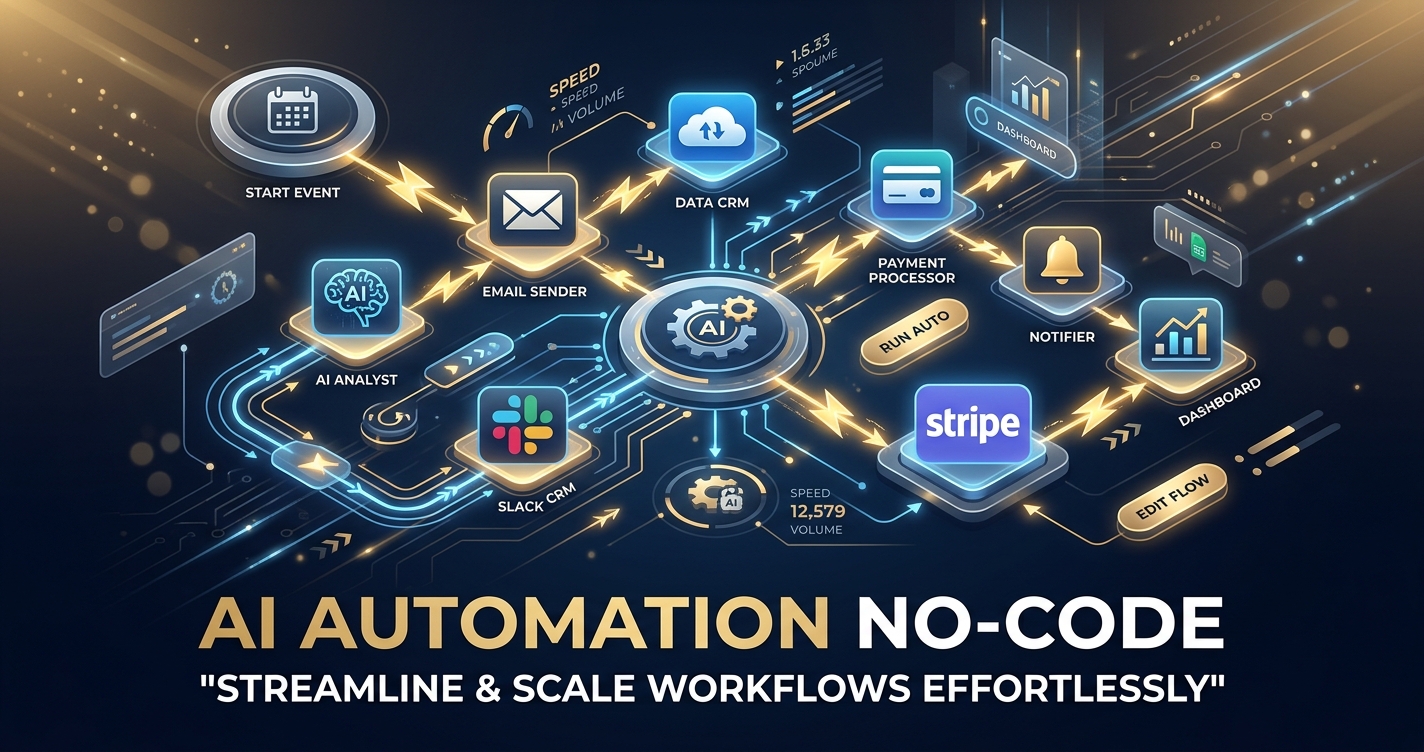
Let’s cut the crap. You’re here because you’re tired of doing repetitive, brain-numbing tasks that could clearly be handled by a machine. You’ve heard the hype about AI, and you know it’s not just for Silicon Valley hotshots with engineering degrees. You want to leverage it, but the thought of coding an API integration makes your eyes glaze over.
Good news: you don’t need to be a developer. This isn’t about writing Python scripts or wrestling with Docker containers. This is about putting AI to work for your business, right now, using the most powerful no-code automation platforms on the planet: Zapier and Make (formerly Integromat).
This guide isn’t for the faint of heart or those looking for corporate platitudes. We’re going to dive deep, show you how to actually connect AI APIs, build robust workflows, and transform your operations. If you’re ready to stop talking about AI and start using it, stick around.
Why Should You Bother with AI Automation?
Because your time is finite, and your brain is better spent on strategy than on busywork. AI automation isn’t about replacing humans; it’s about augmenting them. It’s about offloading the grunt work to digital assistants that never sleep, never complain, and process information at speeds you can only dream of.
Think about it:
- Content generation: Draft blog posts, social media captions, or email sequences in minutes, not hours.
- Customer service: Summarize support tickets, draft personalized responses, and analyze sentiment without human intervention.
- Data extraction: Pull specific information from documents, emails, or web pages and structure it for analysis.
- Personalized outreach: Craft unique sales emails or marketing messages based on prospect data.
The list goes on. The core benefit is simple: efficiency, scalability, and consistency. You move faster, do more, and make fewer mistakes. Period.
What Are Zapier and Make, and Why Are They Your AI Sidekicks?
Before we get our hands dirty, let’s briefly define our tools. Both Zapier and Make are “Integration Platform as a Service” (iPaaS) solutions. In plain English, they’re the glue that connects thousands of different web applications without writing a single line of code.
What is Zapier?
Zapier is the OG of no-code automation. It’s known for its user-friendliness and massive library of integrations (over 6,000 apps and counting). Workflows in Zapier are called “Zaps” and are structured as Trigger -> Action -> Action.... It’s incredibly intuitive, making it a favorite for those just starting out or needing straightforward automations. Think of it as a powerful, but somewhat linear, digital assembly line.
What is Make?
Make (formerly Integromat) is Zapier’s more visually-oriented, arguably more powerful, and often more cost-effective cousin. Make uses a canvas-based interface where you drag and drop modules to build complex, branching workflows. These are called “scenarios.” Make excels at intricate logic, conditional routing, and iterative processes. If Zapier is a linear assembly line, Make is a sophisticated, multi-branching factory floor.
Both platforms have built-in integrations for popular AI services like OpenAI, Google AI, and Anthropic. Crucially, they also allow you to connect to any AI API using their generic HTTP/Webhooks modules, giving you limitless possibilities.
How Do You Connect AI APIs to No-Code Platforms?
This is where the magic starts. Connecting an AI API isn’t as intimidating as it sounds. For most popular AI models, Zapier and Make have dedicated apps. For everything else, you use their “Webhooks” or “HTTP” modules.
Step-by-Step: Leveraging Dedicated AI Apps (e.g., OpenAI)
Let’s take OpenAI as an example, since it’s practically the default for many AI tasks.
- Get Your API Key: First, you need an API key from your chosen AI provider. For OpenAI, you’d go to
platform.openai.com/api-keys, create a new secret key, and copy it. Treat this key like your bank account password; never share it publicly. - Add the AI App to Your Workflow:
- Zapier: When building a Zap, search for “OpenAI” as an Action step. You’ll be prompted to connect your account. Paste your API key there.
- Make: In a new scenario, search for “OpenAI” and add a module (e.g., “Create a Completion” or “Generate Image”). When configuring it, you’ll be asked to add a connection. Provide your API key.
- Configure the AI Request: This is where you tell the AI what to do.
- Model: Select the AI model (e.g.,
gpt-4o,gpt-3.5-turbo). Different models have different capabilities and costs. - Prompt: This is your instruction to the AI. This is where you’ll dynamically inject data from previous steps in your workflow. For example, “Summarize this article: [Article Content from previous step]”.
- Temperature: Controls the randomness of the output (0.0 for deterministic, 1.0 for creative).
- Max Tokens: Limits the length of the AI’s response.
- Other Parameters: Depending on the AI model and task, you might have options for system messages, user messages, function calls, etc.
- Model: Select the AI model (e.g.,
What if There’s No Dedicated App? Using Webhooks/HTTP Modules
This is the power move for connecting to any custom or less-popular AI service. Most AI APIs communicate via HTTP requests, usually JSON payloads.
- Understand the API Documentation: You’ll need to consult the AI service’s API documentation. Look for:
- Endpoint URL: The specific web address to send your request to.
- Method: Usually
POSTfor sending data. - Headers: Often includes
Content-Type: application/jsonandAuthorization: Bearer YOUR_API_KEY. - Body: The JSON structure containing your input data (e.g., your prompt).
- Configure the Webhook/HTTP Module:
- Zapier: Use the “Webhooks by Zapier” app. Select “Custom Request.”
- Make: Use the “HTTP” app. Select “Make a request.”
- Fill in the Details:
- URL: Paste the API endpoint URL.
- Method: Select
POST. - Headers: Add
Content-Type: application/jsonandAuthorization: Bearer YOUR_API_KEY. ReplaceYOUR_API_KEYwith your actual key. - Body: Construct the JSON payload exactly as required by the API documentation. You’ll map data from previous steps into this JSON structure. For example:
{"model": "your_custom_model", "prompt": "{{text_from_previous_step}}"}. Make sure your JSON is valid.
This method gives you incredible flexibility, allowing you to connect to specialized AI models, internal AI services, or cutting-edge research APIs as soon as they’re available.
How Do You Build Robust AI Workflows? The Anatomy of an Automation
Building an automation isn’t just about connecting A to B. It’s about creating intelligent sequences that handle data, make decisions, and complete complex tasks.
The Core Components: Triggers, Actions, and Data Mapping
- Trigger: This is what starts your automation.
- Examples: New email in Gmail, new row in Google Sheet, new form submission, new Slack message, a scheduled time.
- Pro Tip: Choose triggers that are specific and reliable to avoid unnecessary runs.
- Actions: These are the tasks your automation performs.
- Examples: Sending data to an AI, sending an email, updating a database, posting to Slack, creating a document.
- AI Specific Action: This is where you send your prompt to the AI. The output from the AI (e.g., generated text) becomes data for subsequent actions.
- Data Mapping: The art of passing information from one step to the next.
- When configuring an action, you’ll see fields where you can insert data from previous steps. This is crucial for making your AI dynamic. Instead of a static prompt like “Write a blog post about marketing,” you can map a field like “Write a blog post about {{Topic from Google Sheet}}” to make it reusable.
Adding Intelligence: Filters and Routers/Paths
Raw triggers and actions are fine for simple tasks, but real-world scenarios need more.
- Filters (Zapier & Make): These let you define conditions that must be met for the workflow to continue.
- Example: Only run the AI content generation if the “Content Type” field in your Google Sheet is “Blog Post.”
- Routers (Make) / Paths (Zapier): These allow for branching logic, sending data down different paths based on conditions.
- Example: If the AI’s sentiment analysis is “Negative,” send an alert to a team channel. If it’s “Positive,” send an automated thank-you email. This is where Make truly shines with its visual branching capabilities. Zapier’s “Paths” are more recent and offer similar functionality, though often with a slightly different interface.
Handling Iteration: Processing Lists of Data
Sometimes, your trigger or an AI response will contain a list of items (e.g., a list of email addresses, a list of product reviews).
- Iterator (Make): Make has a powerful “Iterator” module that can take an array of items and process each one individually through subsequent modules. This is incredibly useful for batch processing.
- Looping (Zapier): Zapier offers a “Looping” action (often a premium feature) that allows you to iterate over a list of items and perform actions for each.
Mastering these components transforms your automations from basic “if this, then that” to sophisticated, multi-stage workflows.
Practical AI Automation Examples That Actually Work
Let’s get specific. Here are some real-world applications you can build today.
Can You Automate Content Creation and Distribution? (Yes, and it’s glorious)
The Problem: Generating consistent, high-quality content (blog posts, social media updates, email newsletters) is a massive time sink. The Solution: Use AI to draft content based on prompts, then automate its distribution.
Workflow Idea (Zapier/Make):
- Trigger: New row in a Google Sheet (e.g.,
Topic,Keywords,Content Type). - Action (AI): Send
TopicandKeywordsto OpenAI (or your chosen AI) with a prompt like: “Write a 500-word blog post draft about {{Topic}} including these keywords: {{Keywords}}. Focus on a bold, direct tone.” - Action (AI): Take the generated blog post and send it to another AI action to “Extract 3 compelling social media posts (Twitter, LinkedIn, Facebook) from the following text: {{AI Generated Blog Post}}.”
- Action (CMS/Social Media): Take the generated blog post draft and create a draft post in WordPress, Webflow, or your CMS.
- Action (Social Media Scheduler): Take the extracted social media posts and schedule them in Buffer, Hootsuite, or your preferred scheduler.
- Action (Notification): Send a Slack message to your content team that a new draft is ready for review.
Key Takeaway: AI handles the initial heavy lifting, freeing your team to refine, optimize, and strategize rather than staring at a blank page.
How Can AI Supercharge Your Customer Support? (Beyond basic chatbots)
The Problem: Support agents spend too much time summarizing issues, searching for answers, and drafting repetitive responses. The Solution: AI can analyze incoming tickets, suggest solutions, and even draft personalized replies.
Workflow Idea (Zapier/Make):
- Trigger: New support ticket created in Zendesk, Intercom, or email inbox.
- Action (AI - Sentiment Analysis): Send the
Ticket SubjectandTicket Bodyto an AI with a prompt: “Analyze the sentiment of the following support ticket and classify it as ‘Positive’, ‘Neutral’, or ‘Negative’: {{Ticket Content}}.” - Action (AI - Summarization): Send the
Ticket Bodyto an AI with a prompt: “Summarize this support ticket into 3 key bullet points, identifying the core problem and user’s goal: {{Ticket Content}}.” - Action (Database Lookup/AI): Use the summary to search your knowledge base (e.g., Notion, Google Docs) for relevant articles. Alternatively, send the summary to an AI with a prompt: “Based on this problem: {{Summary}}, suggest a preliminary solution or relevant knowledge base article.”
- Action (CRM/Support System): Update the ticket with the AI-generated
SentimentandSummary. Add theSuggested Solutionas an internal note. - Action (Email/Support System): Draft a personalized response based on the summary and suggested solution, ready for agent review.
Key Takeaway: Reduce agent workload, speed up response times, and ensure consistent quality in initial customer interactions.
Can AI Automate Data Extraction and Structuring? (Say goodbye to manual data entry)
The Problem: Extracting specific data points from unstructured text (emails, documents, contracts, reviews) is incredibly tedious and error-prone. The Solution: AI can parse text and extract defined entities, then structure them into usable formats.
Workflow Idea (Make - shines here due to regex/data parsing capabilities):
- Trigger: New email with an attachment (e.g., an invoice, a receipt) in Gmail.
- Action (Parser): Extract text content from the attached document (e.g., PDF parser module).
- Action (AI): Send the extracted text to an AI with a prompt like: “Extract the following details from this text, outputting them as a JSON object: ‘Invoice Number’, ‘Client Name’, ‘Total Amount’, ‘Due Date’. If a field is not found, use null. Text: {{Extracted Text}}.”
- Example Prompt for JSON Output:
(Provide the expected JSON structure to guide the AI){ "invoice_number": null, "client_name": null, "total_amount": null, "due_date": null }
- Example Prompt for JSON Output:
- Action (JSON Parser): Parse the AI’s JSON output to extract the individual data points.
- Action (Database/CRM): Take the extracted
Invoice Number,Client Name,Total Amount, andDue Dateand create a new record in Airtable, Google Sheets, or your CRM. - Action (Notification): Send a Slack message if any critical data points were
nullor if the AI returned an error.
Key Takeaway: Eliminate manual data entry, reduce errors, and free up staff for higher-value tasks. This is where automation directly impacts operational costs.
How Can AI Personalize Sales & Marketing Outreach? (No more generic emails)
The Problem: Generic outreach emails get ignored. Personalizing every single message is impossible at scale. The Solution: Use AI to generate hyper-personalized outreach based on prospect data.
Workflow Idea (Zapier/Make):
- Trigger: New lead added to CRM (e.g., Salesforce, HubSpot) with fields like
Company Name,Industry,Pain Point Mentioned,Recent Activity. - Action (AI): Send these lead details to an AI with a prompt: “Draft a personalized cold email for a lead at {{Company Name}} in the {{Industry}} sector. Their main pain point is {{Pain Point Mentioned}}. Mention their recent activity of {{Recent Activity}}. Keep it concise, professional, and focus on how our solution can specifically address their pain point. Include a clear call to action.”
- Action (Email/CRM): Take the AI-generated email draft and either send it directly (with caution and careful testing!) or add it as a draft to your CRM for a sales rep to review and send.
- Action (Optional - AI Follow-up): After a set delay, if no response, use AI to draft a follow-up email, referencing the previous message.
Key Takeaway: Boost engagement and conversion rates by delivering relevant, personalized messages at scale, something previously only possible with immense manual effort.
Zapier vs. Make: Which No-Code AI Platform is Right For You?
Choosing between Zapier and Make often comes down to your budget, complexity needs, and preferred interface. Both are excellent, but they have distinct strengths.
Zapier vs. Make: A Comparison Table
| Feature | Zapier | Make |
|---|---|---|
| Interface | Linear, step-by-step workflow builder | Visual, drag-and-drop canvas for complex scenarios |
| Ease of Use (Beginner) | Very High (Intuitive, guided setup) | Medium (Steeper learning curve, but powerful once mastered) |
| App Integrations | 6,000+ apps (Largest library) | 1,700+ apps (Still extensive, growing rapidly) |
| Workflow Complexity | Best for linear, straightforward automations. Paths for branching. | Excellent for complex, branching, conditional logic, and iterative workflows. |
| Cost Model | Based on “Tasks” (each successful action is a task). | Based on “Operations” (each module executed is an operation). |
| Free Tier | 100 tasks/month, 5 Zaps, 15 min update interval | 1,000 operations/month, unlimited scenarios, 15 min interval |
| Entry Paid Tier | Starter: $19.99/month (750 tasks, 3 min interval) | Core: $9/month (10,000 operations, 5 min interval) |
| Advanced Features | Paths, Formatter, Delay, Looping (premium) | Routers, Iterators, Aggregators, Error Handlers, Webhooks (built-in) |
| Error Handling | Basic retry logic, email notifications | Robust, built-in error handling routes, rollback, custom messaging |
When to Choose Zapier
- You’re a beginner: The simple, linear interface is incredibly easy to grasp.
- You need specific app integrations: Zapier’s library is unrivaled. If your niche app is there, Zapier likely has the best integration.
- Your workflows are mostly linear: If it’s
Trigger -> AI Action -> Another Action, Zapier handles this beautifully. - You prioritize simplicity over raw power: You want to get things done quickly without getting lost in complex logic.
When to Choose Make
- You need complex, branching logic: Make’s visual canvas is superior for intricate workflows with multiple paths, conditions, and error handling.
- You’re processing lists of data: Make’s Iterator and Aggregator modules are fantastic for batch processing and manipulating arrays of information.
- You’re cost-conscious for high volume: Make’s “operations” model often provides more bang for your buck, especially for workflows with many internal steps that don’t directly interact with external apps.
- You want more control: Make offers deeper configuration options for its modules and HTTP requests, giving you granular control over your automations.
Bottom Line: If you’re starting out and want quick wins, Zapier is a great entry point. If you’re building sophisticated, enterprise-grade automations that need to be robust and efficient, Make is often the more powerful and cost-effective choice in the long run. Many power users eventually gravitate towards Make for its flexibility.
Best Practices for AI Automation: Don’t Screw It Up
You’re dealing with AI and potentially sensitive data. Here’s how to do it right.
- Start Small, Test Relentlessly: Don’t try to automate your entire business on day one. Build a small workflow, test every step with dummy data, and verify the output. Then, and only then, scale up.
- Manage Your API Keys Securely: Never hardcode API keys directly into prompts or share them. Use the platform’s built-in connection managers, which encrypt and secure your credentials. Rotate keys regularly.
- Understand AI Costs: AI API calls (especially for larger models like GPT-4o) can add up quickly. Be mindful of:
- Token Usage: Both input and output tokens cost money. Be concise with your prompts and set
max_tokensto prevent runaway generation. - Model Choice: Cheaper models (e.g.,
gpt-3.5-turbo) are often sufficient for simpler tasks. Don’t use a sledgehammer to crack a nut. - Frequency: Don’t run an AI task every minute if it only needs to run hourly. Optimize your triggers.
- Token Usage: Both input and output tokens cost money. Be concise with your prompts and set
- Implement Error Handling: What happens if the AI API returns an error? Or if a required field is missing?
- Zapier: Use Filters to prevent bad data from reaching the AI. Use “Delay” steps.
- Make: Leverage Routers for error paths, use
rollbackdirectives, and configure notifications for failed scenarios. This is a huge strength of Make.
- Refine Your Prompts: The quality of your AI output directly depends on the quality of your prompt.
- Be Specific: Tell the AI exactly what you want.
- Provide Context: Give it relevant background information.
- Define Output Format: Ask for JSON, bullet points, specific tone, etc.
- Iterate: Experiment with prompts to find what works best.
- Review AI Output: Especially for critical tasks, always have a human-in-the-loop to review AI-generated content or decisions before final publication or action. AI is a tool, not a deity.
Frequently Asked Questions
Can I really automate complex AI tasks without coding?
Absolutely. Both Zapier and Make are designed for exactly this. While understanding basic API concepts (like headers, methods, and JSON) helps with custom integrations, you won’t write any actual code. Their visual builders and dedicated AI app integrations abstract away the complexity.
What’s the main difference between Zapier “tasks” and Make “operations”?
This is crucial for pricing. In Zapier, a “task” is essentially one successful action step within a Zap. If your Zap has a trigger and three actions, and all succeed, that’s three tasks. In Make, an “operation” is every single module executed within a scenario. If your scenario has a trigger, a filter, and three actions, and they all run, that’s five operations. Make generally offers more operations for your money, making it more cost-effective for complex workflows with many internal steps.
Are these platforms secure for sensitive data, especially with AI?
Both Zapier and Make employ robust security measures, including data encryption, secure API key storage, and compliance certifications (e.g., SOC 2 Type 2). However, you are responsible for how you configure your workflows. Always ensure you’re only sending necessary data to AI models and understand the data retention policies of the AI provider. Never send highly sensitive PII (Personally Identifiable Information) unless you have explicit consent and have thoroughly vetted both the automation platform and the AI service’s privacy policies.
How much does it cost to get started with AI automation?
Both Zapier and Make offer generous free tiers that are excellent for testing and small-scale projects. You can build significant automations for free. Paid plans start as low as $9/month for Make (Core plan) and $19.99/month for Zapier (Starter plan). The cost scales with the number of tasks/operations and the frequency of your automations. AI API costs (e.g., OpenAI) are separate and depend on your usage and the models you choose.
What if my AI model isn’t listed as a direct integration in Zapier or Make?
No problem. As discussed, both platforms have powerful “Webhooks” (Zapier) and “HTTP” (Make) modules. These allow you to send custom HTTP requests to any API endpoint, meaning you can connect to virtually any AI model or service that exposes an API, as long as you understand its documentation.
How do I avoid runaway costs with AI API calls?
Several strategies:
- Filters: Use filters in your workflows to ensure AI calls only happen when absolutely necessary.
- Rate Limits: Configure rate limits in your workflow or check if the AI API has built-in limits you can leverage.
- Max Tokens: Set
max_tokensparameter in your AI requests to limit the length (and cost) of the AI’s response. - Model Selection: Use cheaper, smaller models for simpler tasks.
- Monitoring: Regularly check your usage dashboards for both your automation platform and your AI provider.
- Testing: Thoroughly test with small inputs before deploying at scale to catch prompt issues that might lead to excessive token usage.
The Future is Automated. Get On Board.
Look, the world isn’t waiting. Businesses that embrace AI automation are going to leave those clinging to manual processes in the dust. This isn’t theoretical; it’s happening right now.
Zapier and Make are your keys to unlocking this power without needing a developer team or a venture capital budget. They empower you, the smart adult who understands efficiency, to build the future of your business.
Stop wishing, start building. The tools are here. Your only excuse is inaction.
Sources
> Want more like this?
Get the best AI insights delivered weekly.
By subscribing, you agree to our Privacy Policy. You can unsubscribe at any time.
> Related Articles
Autonomous Business Agents Need a Control Plane Before They Need More Tools
Pion's research preview connects persistent agents to business systems. Evidence from real vending, retail, and cafe trials shows why monitoring and bounded authority are the core product.
AI Systems Need Three Trust Layers: Verifiable Work, Managed Permissions, and Private Credentials
A cipher-solving agent, GitHub's enterprise controls, and Signal's zkgroup work point to the same production lesson: intelligence needs enforceable trust boundaries.
RAG Query-Rewriting Evaluation: Prove the Rewrite Finds Better Evidence
Query rewriting often sounds smarter while retrieving worse evidence. Evaluate rewrites against relevant documents, failure slices, and final grounded answers before shipping them.
Tags
> Stay in the loop
Weekly AI tools & insights.