Build an AI Chatbot Without Writing a Single Line of Code
Four no-code platforms, zero programming. Step-by-step tutorial to build a production-ready AI chatbot for support, lead gen, or internal knowledge bases.
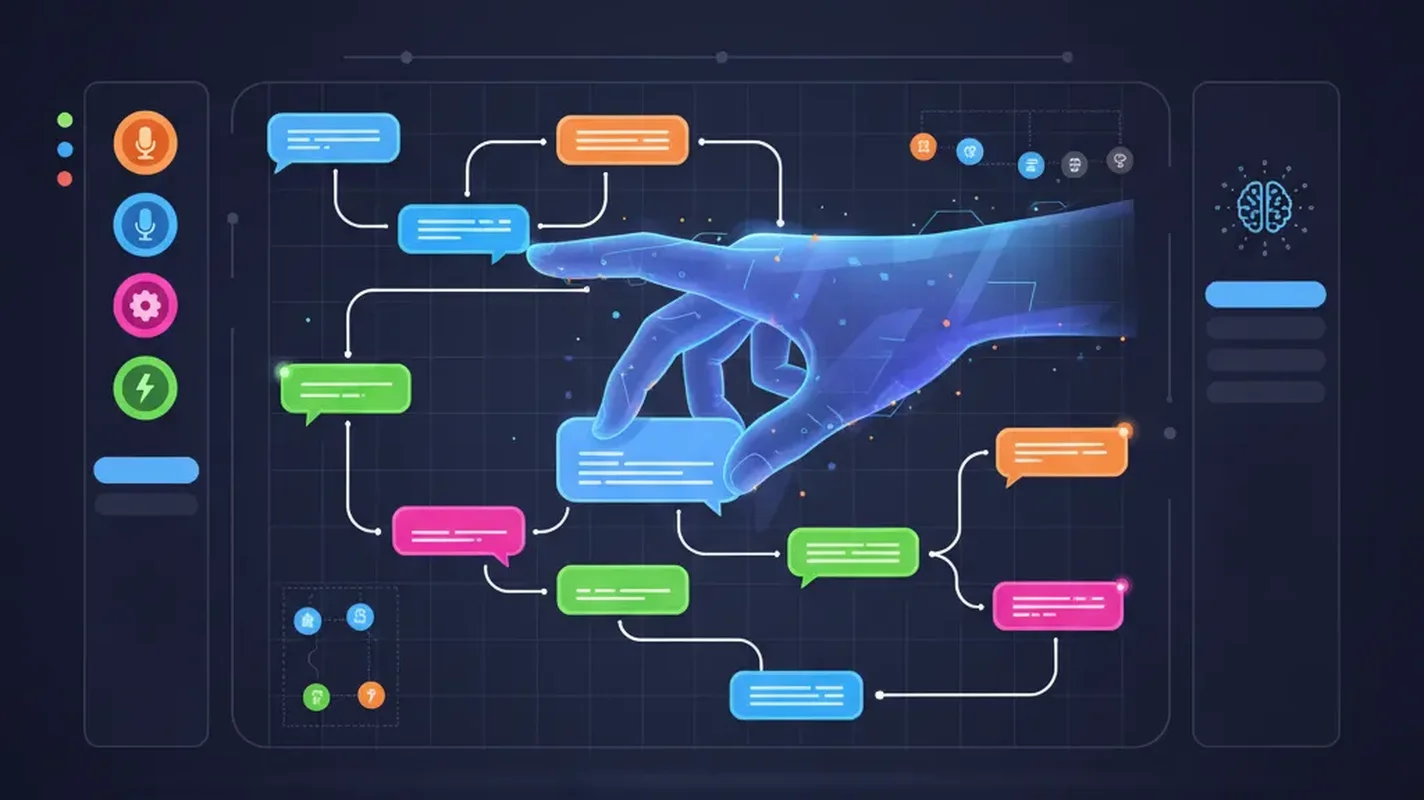
Stop paying developers $5,000 to build something you can set up in an afternoon. AI chatbots used to require months of development, NLP expertise, and a small engineering team. That era is over. The no-code platforms available today are genuinely good — not “good for no-code” but actually good.
In this tutorial, you’ll build a functional AI chatbot from scratch. No code. No terminal. Just a browser and a plan. Four platforms, three use cases, every pitfall. Let’s go.
What You Actually Need Before Starting
Before you touch any platform, get these things sorted:
- A clear use case. “I want a chatbot” is not a use case. “I want a chatbot that answers customer questions about our return policy using our help docs” is. Be specific or you’ll waste hours.
- Your knowledge base content. PDFs, website URLs, FAQ pages — whatever your chatbot needs to know. Gather it now. The #1 reason these projects stall is people start building before organizing their source material.
- A credit card (maybe). All four platforms have free tiers, but useful features sit behind paywalls. Expect $0-50/month.
- 30-60 minutes. This isn’t a weekend project. It’s a lunch break project.
The Four Platforms: Quick Decision Guide
Don’t read this entire tutorial and then decide which platform to use. Decide now, then skip to that section.
| Platform | Best For | Free Tier | Learning Curve |
|---|---|---|---|
| Botpress | Complex multi-step flows, developers who want visual tools | 5 bots, 2,000 messages/mo | Medium |
| Voiceflow | Teams building voice + chat experiences, collaborative design | 2 projects, 50 knowledge base items | Medium-High |
| Chatbase | Quick “train on my docs” chatbots, simple deployment | 1 chatbot, 20 messages/mo | Very Low |
| CustomGPT | Business users who want GPT-4 trained on their content | 7-day trial | Low |
Customer support? Start with Chatbase or CustomGPT. They’re built for this.
Lead generation? Botpress. Its flow builder makes it easy to capture emails and qualify leads before routing to a human.
Internal knowledge base? Voiceflow or CustomGPT. Both handle document ingestion well and support access controls.
Now pick one and keep reading.
Option 1: Botpress — The Power User’s Choice
Botpress is what happens when engineers build a no-code tool. It’s the most capable platform here, but it demands the most from you. The visual flow builder is excellent once you understand it, and confusing before that.
Step 1: Create Your Bot
Head to botpress.com and create a free account. Once you’re in the dashboard, click Create Bot. You’ll see a blank canvas — this is the Studio, where everything happens.
On the left sidebar, you’ll notice several tabs: Flows, Knowledge Base, Tables, and Hooks. For now, we care about Flows and Knowledge Base.
Step 2: Set Up the Knowledge Base
Click Knowledge Base in the left sidebar. This is where your chatbot learns. Click Add Knowledge Source and pick your method:
- Website URL: Paste your URL. Botpress crawls and indexes pages automatically. You can filter by path patterns (e.g.,
/help/*to only index your help center). - Document Upload: Drag in PDFs, DOCX, or plain text. 100MB limit per file on free tier.
- Raw Text: Paste content directly. Good for FAQs from a spreadsheet.
After uploading, Botpress chunks your content and creates vector embeddings. You’ll see a progress bar. Wait for it to finish — building flows before your knowledge base is indexed is a recipe for confused testing later.
Step 3: Build the Conversation Flow
Go back to Flows. You’ll see a Main flow with a Start node. Click the Start node and add a Standard Node after it.
In this new node, click Add Card and select AI Task. Configure it:
- Task Instructions: Write something like “Answer the user’s question using the knowledge base. Be helpful and concise. If you don’t know the answer, say so honestly and suggest they contact [email protected].”
- AI Model: Select GPT-4o or Claude (Botpress supports both)
- Knowledge Base: Toggle this ON. This is crucial — without it, the AI answers from its general training data, not your documents.
Add a Capture card below to grab the user’s next message, then loop it back to the AI Task node. This creates a continuous conversation loop.
Step 4: Add a Fallback
Create a separate node for when the AI has no answer. In your AI Task node, add a transition: if the AI confidence is below 0.3, route to a Handoff Node that either collects the user’s email or displays a support link. This prevents your chatbot from making things up.
Step 5: Test and Deploy
Click Test in the top right. The emulator panel opens on the right side of the screen. Ask it questions that your knowledge base should cover. Check that answers are accurate and grounded in your content, not hallucinated.
When you’re satisfied, click Publish in the top right corner. Go to Integrations in the left sidebar to grab the embed code (a JavaScript snippet) for your website, or connect to WhatsApp, Slack, Messenger, or Telegram directly.
Botpress Pitfalls
- The “AI Task” vs “Execute Code” confusion. New users often try to use Execute Code nodes when they should use AI Task nodes. If you’re not writing JavaScript, you want AI Task.
- Knowledge Base not updating. After changing source documents, you need to manually resync. It doesn’t auto-refresh.
- Flow loops without exit conditions. Always add a way for users to exit the conversation (a “talk to human” option or a goodbye message). Infinite loops frustrate users fast.
Option 2: Voiceflow — The Designer’s Platform
Voiceflow started as a voice app builder and evolved into a full conversational AI platform. Its canvas-based editor feels more like Figma than a chatbot builder, which makes it intuitive for visual thinkers.
Step 1: Create a Project
Sign up at voiceflow.com. Click Create New Project, give it a name, and choose Chat as the channel type (unless you’re building for voice assistants — then pick Voice).
Step 2: Upload Knowledge Sources
Click the Knowledge Base icon in the left toolbar (it looks like a book). Hit Upload and add your documents. Voiceflow supports URLs, PDFs, plain text, and sitemaps. For websites, paste your sitemap URL and Voiceflow indexes every page automatically.
Under each source, you can set Refresh Schedule to daily or weekly. This is a major advantage over Botpress — your chatbot stays current without manual intervention.
Step 3: Build the Conversation Design
The canvas starts with a Start block. Click the output port and drag to create a new block. Add a Response step with a welcome message: “Hey! I’m [Your Company]‘s assistant. Ask me anything about our products.”
Next, add a Capture step to grab the user’s input. Connect it to an AI Response step. In the AI Response configuration:
- Toggle Knowledge Base to ON
- Set the System Prompt: “You are a helpful assistant for [Company Name]. Answer based on the provided knowledge base only. Be concise. Use bullet points for lists.”
- Set Temperature to 0.3 (lower = more factual, less creative)
- Choose your model (GPT-4o recommended for accuracy)
Loop the output back to the Capture step so the conversation continues.
Step 4: Publish and Embed
Click Publish in the top right. Go to Integrations and grab the web chat widget code. It’s a JavaScript snippet — paste it before the </body> tag on your website. You can customize the widget’s colors, position, and avatar from the integration settings panel.
Voiceflow Pitfalls
- The free tier is tight. 50 knowledge base items means 50 document chunks, not 50 documents. A 10-page PDF might consume 30+ items. Upgrade quickly if you have real content.
Option 3: Chatbase — The “I Need This Live in 10 Minutes” Option
Chatbase is the fastest path from zero to deployed chatbot. The trade-off is less customization. If you want a chatbot trained on your content with minimal configuration, this is it.
Step 1: Create and Train
Go to chatbase.co, sign up, and click New Chatbot. You’ll immediately see the training interface. You have three options:
- Website URL: Paste URLs and Chatbase crawls them. You can add multiple URLs and it’ll index all of them.
- File Upload: Drag in PDFs, DOCX, TXT, or CSV files. Up to 11M characters on the paid plan.
- Raw Text: Paste content directly into a text box.
Add your sources and click Create Chatbot. Training takes 30 seconds to a few minutes depending on content volume. That’s it for the hard part.
Step 2: Configure Behavior
Once training completes, go to the Settings tab. Here’s what matters:
- Base Prompt: This is your system message. Write clear instructions: “You are a customer support agent for [Company]. Only answer questions based on the provided training data. If you don’t know, say ‘I don’t have that information — please email [email protected].’”
- Model: GPT-4o for accuracy, GPT-3.5 Turbo if you’re watching costs.
- Temperature: Keep it at 0 for support bots. Bump to 0.5-0.7 for more conversational bots.
- Response Length: Set a character limit to prevent rambling answers.
Step 3: Customize Appearance
Under the Chat Interface tab, you can set:
- Widget color (match your brand’s primary color)
- Chat icon and avatar
- Initial messages (suggested questions that appear as clickable buttons)
- User message placeholder text
- Dark/light mode
Step 4: Deploy
Go to Embed on Website and copy the iframe or script tag. The iframe is simpler (just paste it anywhere), the script tag creates a floating chat bubble in the corner of your page.
For WordPress users: paste the script in your theme’s footer template or use a plugin like “Insert Headers and Footers.”
For Shopify: Go to Online Store > Themes > Edit Code > theme.liquid, paste before </body>.
Chatbase Pitfalls
- The free tier is almost unusable. 20 messages per month is a demo, not a product. Plan on the $19/month Hobby tier minimum.
- No conversation flow control. Chatbase is a Q&A bot, not a flow builder. You can’t create multi-step forms, conditional routing, or lead qualification flows. If you need those, use Botpress.
- Retraining after content updates. When your source content changes, you need to manually retrain. There’s a retrain button in settings, but no auto-refresh schedule.
Option 4: CustomGPT — GPT-4 With Your Data
CustomGPT takes a different approach — you’re creating a custom GPT-4 instance grounded in your content. Clean interface, solid results, least intimidating of the four.
Step 1: Create Your Project
Sign up at customgpt.ai and click Create Project. Name it and choose your data source. CustomGPT supports:
- Sitemaps: Paste your sitemap XML URL for full website indexing
- Individual URLs: Add pages one by one
- File Uploads: PDFs, Word docs, PowerPoint, Excel, and text files
- YouTube Videos: Paste video URLs and it transcribes + indexes the content
The YouTube feature is genuinely useful. If you have training videos or webinars, your chatbot can answer questions about their content.
Step 2: Configure the AI
Under Settings > AI Configuration, set:
- Persona: Describe who the chatbot is. “You are a friendly product specialist for [Company]. You help customers understand our products and troubleshoot issues.”
- Response Style: Choose between concise, balanced, or detailed.
- Citation Mode: Turn this ON. CustomGPT can show sources for its answers, which builds user trust and lets people dig deeper.
- Anti-Hallucination: Toggle this to strict. The bot will refuse to answer rather than make something up.
Step 3: Deploy
CustomGPT offers several deployment options under the Deploy tab:
- Embed Widget: JavaScript code for your website
- Full Page: A standalone URL you can share (great for internal knowledge bases)
- API: REST API for custom integrations
- Slack/Teams: Direct integrations for internal use
For internal knowledge bases, the full-page deployment is underrated. Share a link with your team and they have instant, searchable access to all your company documentation. No website integration required.
CustomGPT Pitfalls
- No free tier, just a trial. The 7-day trial converts to $99/month (Standard plan). That’s steep for individuals but reasonable for businesses.
- Limited conversation flow. Like Chatbase, this is primarily a Q&A tool. No branching logic, no form capture, no lead qualification.
- Indexing large sites takes time. A 500-page website might take 20-30 minutes to fully index. Be patient.
Cost Analysis: What You’ll Actually Pay
Let’s cut through the pricing page marketing and talk real numbers for a small business running one chatbot with moderate traffic (~1,000 conversations per month):
| Platform | Plan You Actually Need | Monthly Cost | Messages Included | Cost Per Message |
|---|---|---|---|---|
| Botpress | Team | $39/mo | 5,000 | $0.008 |
| Voiceflow | Pro | $50/mo | Unlimited (fair use) | ~$0 |
| Chatbase | Standard | $99/mo | 4,000 | $0.025 |
| CustomGPT | Standard | $99/mo | 1,000 | $0.099 |
The hidden cost nobody mentions: AI model usage. Botpress and Voiceflow charge separately for LLM API calls if you exceed their included AI credits. At high volume, this adds $20-50/month on top.
My take: Start with Chatbase for a quick Q&A bot. Move to Botpress when you need flows and lead capture. Voiceflow for team collaboration. CustomGPT if you want the simplest setup and don’t mind paying more.
Common Pitfalls That Kill Chatbot Projects
These apply to every platform:
1. Stuffing too much content. More content doesn’t mean better answers. Curate your sources. Don’t dump your entire website and hope for the best.
2. Skipping the system prompt. The default prompt on every platform is generic garbage. Write a specific one — name, company, tone, and what to do when it doesn’t know the answer.
3. Not testing with real questions. Before going live, give the URL to three people who know nothing about the project. Their questions will expose every gap in your knowledge base.
4. Forgetting the handoff. Every chatbot needs an escape hatch. A “talk to a human” button isn’t a failure — it’s good design.
5. Ignoring analytics. Every platform provides conversation logs. Read them weekly. You’ll find questions your chatbot can’t answer, questions it answers wrong, and questions that reveal deeper problems with your product or docs.
The Bottom Line
You don’t need to code a chatbot. You don’t even need to understand how LLMs work under the hood. These four platforms have abstracted the hard parts into drag-and-drop interfaces and configuration panels.
The real work isn’t technical — it’s editorial. Curating your knowledge base, writing a sharp system prompt, and iterating based on real conversations. That’s what separates a chatbot that helps from one that annoys users into closing the tab.
Pick a platform. Upload your content. Deploy today. Stop overthinking it.
> Want more like this?
Get the best AI insights delivered weekly.
By subscribing, you agree to our Privacy Policy. You can unsubscribe at any time.
> Related Articles
Autonomous Business Agents Need a Control Plane Before They Need More Tools
Pion's research preview connects persistent agents to business systems. Evidence from real vending, retail, and cafe trials shows why monitoring and bounded authority are the core product.
AI Systems Need Three Trust Layers: Verifiable Work, Managed Permissions, and Private Credentials
A cipher-solving agent, GitHub's enterprise controls, and Signal's zkgroup work point to the same production lesson: intelligence needs enforceable trust boundaries.
RAG Query-Rewriting Evaluation: Prove the Rewrite Finds Better Evidence
Query rewriting often sounds smarter while retrieving worse evidence. Evaluate rewrites against relevant documents, failure slices, and final grounded answers before shipping them.
Tags
> Stay in the loop
Weekly AI tools & insights.