Microsoft's Copilot Strategy: Genius Play or $13 Billion Gamble?
Microsoft has embedded AI into every product it owns and bet the entire company on Copilot. Here's why the strategy is either visionary or reckless — with no middle ground.
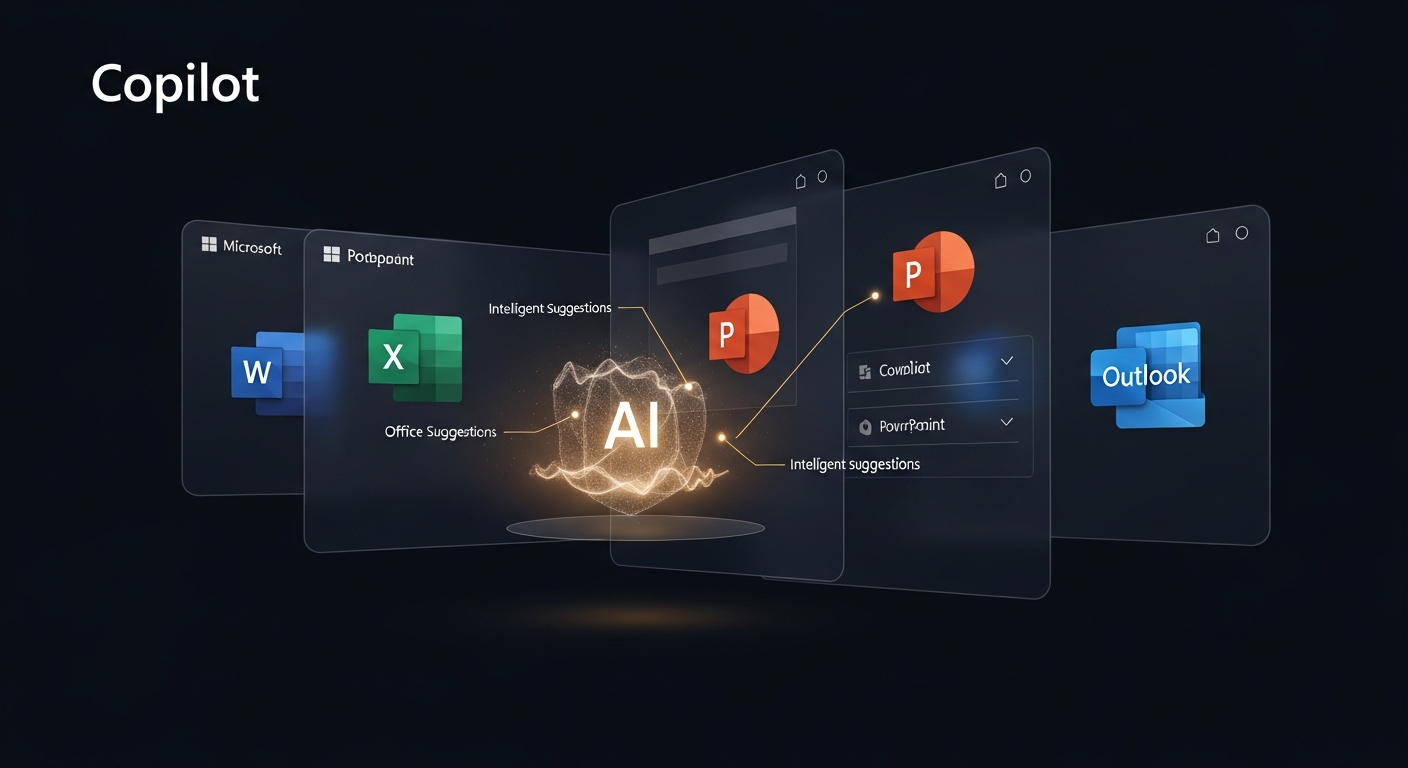
Satya Nadella has made the biggest bet in Microsoft’s history, and he’s done it with the subtlety of a freight train. Since 2023, Microsoft has invested over $13 billion in OpenAI, embedded AI into every product in its portfolio, renamed its search engine’s AI features to “Copilot,” slapped the Copilot brand on everything from Windows to Dynamics 365, and fundamentally restructured the company around the thesis that AI assistants will become the primary interface for knowledge work.
The scale of this bet is breathtaking. Microsoft 365 Copilot — the AI assistant embedded in Word, Excel, PowerPoint, Outlook, and Teams — is the most ambitious enterprise software product launch since, well, Microsoft Office itself. It’s being sold to every Fortune 500 company on Earth, at $30 per user per month on top of existing Microsoft 365 subscriptions. If even 10% of Microsoft 365’s 400 million users adopt Copilot, that’s $14 billion in annual recurring revenue from AI alone.
But the early results are mixed, the competition is intensifying, and the OpenAI partnership that underpins the whole strategy has gotten complicated. Let’s break down what’s working, what’s not, and whether the bet will pay off.
What Exactly Is Microsoft’s Copilot Strategy?
Microsoft’s strategy is deceptively simple: put an AI assistant everywhere. The execution spans four pillars:
Microsoft 365 Copilot — AI embedded in Word (drafts documents), Excel (analyzes data, creates formulas), PowerPoint (generates presentations), Outlook (summarizes emails, drafts responses), and Teams (summarizes meetings, generates action items). This is the revenue engine.
GitHub Copilot — AI code completion and generation for developers. The first Copilot product, launched in 2022, and still the most successful by adoption metrics. Over 1.8 million paid subscribers as of early 2026, making it one of the fastest-growing developer tools in history.
Windows Copilot — AI integrated into the Windows operating system, accessible via keyboard shortcut, capable of controlling settings, managing files, and answering questions about on-screen content.
Copilot for Dynamics 365, Power Platform, Security, and Azure — AI assistants tailored for specific enterprise workloads: CRM, ERP, low-code development, cybersecurity operations, and cloud infrastructure management.
The unifying thesis: AI shouldn’t be a separate app you switch to. It should be an assistant that lives inside the tools you already use, understands your context (your documents, emails, meetings, data), and helps you work faster without changing your workflow.
Is Microsoft 365 Copilot Actually Good?
This is where things get complicated. The answer depends heavily on the specific application and the user’s expectations.
Where Copilot Excels
Meeting summaries in Teams are Copilot’s killer feature. Join a meeting late, and Copilot can tell you what’s been discussed. Miss a meeting entirely, and Copilot provides a structured summary with key decisions and action items. For executives who are double-booked across meetings all day, this feature alone can justify the subscription.
Email management in Outlook is strong. Copilot can summarize long email threads, draft contextual responses, and prioritize your inbox based on content and sender importance. The time savings for heavy email users are real — multiple enterprise case studies report 30-45 minutes saved per day for executives.
Data analysis in Excel works well for common tasks. Asking Copilot to create pivot tables, generate charts, identify trends, or write complex formulas in natural language is faster than doing it manually for most users. It handles standard business data analysis competently.
Where Copilot Disappoints
Document creation in Word is the biggest letdown. Copilot can generate first drafts, but the output quality is generic and often requires as much editing as writing from scratch. For anything beyond standard business templates, the AI drafts lack the specificity and insight that make a document useful. A McKinsey consultant’s slide deck won’t emerge from a Copilot prompt.
PowerPoint generation has the same problem as Word — technically functional but creatively flat. The presentations Copilot creates are acceptable for internal updates but embarrassing for client-facing work. Gamma and other dedicated AI presentation tools produce significantly better output.
The context problem is Copilot’s deepest weakness. In theory, Copilot can access all your Microsoft 365 data — emails, documents, Teams chats, SharePoint files — to provide contextual assistance. In practice, data permissions, search indexing, and content retrieval are finicky. Copilot sometimes can’t find documents you know exist, misunderstands the context of questions, or retrieves irrelevant information. The promise of an AI that “knows your work” is partially delivered at best.
Practical Guide: How to Actually Use Copilot Across Microsoft 365
Enough analysis. Let’s get into what matters: how to extract real value from Copilot if your organization is already paying for it. Most users activate Copilot, try a generic prompt, get a mediocre result, and give up. That’s a $30/month waste. Here’s how to not be that person.
Copilot in Word — Beyond “Write Me a Document”
The default behavior — typing “Draft a proposal about X” — produces garbage. Everyone knows this. The trick is treating Copilot as a structural tool, not a creative one.
Reference existing files. Instead of prompting from nothing, tell Copilot to work from source material: “Using the Q3 sales report in SharePoint, draft an executive summary highlighting revenue growth by region.” When Copilot has real data to reference, the output quality jumps dramatically.
Use it for transformation, not creation. Copilot is better at converting content between formats than generating from scratch. Paste meeting notes and ask it to create a structured action plan. Drop in raw data and ask for a narrative summary. Feed it a long document and request a two-page briefing. The input-to-output pipeline is where it shines.
Iterative refinement works. Don’t accept the first draft. Use follow-up prompts: “Make the tone more formal,” “Add specific metrics from the referenced document,” “Restructure to lead with the recommendation.” Three rounds of refinement consistently beats one round of hoping for a perfect first draft.
Copilot in Excel — Where It Actually Earns Its Keep
Excel is Copilot’s strongest app. The reason is structural: spreadsheet tasks are precise, verifiable, and well-defined. Ask for a VLOOKUP formula, and it either works or it doesn’t.
Natural language formulas. Type “Calculate year-over-year growth rate for each product category” and Copilot generates the correct formula. For anyone who doesn’t have Excel’s formula syntax memorized (most people), this eliminates the Google-search-copy-paste cycle entirely.
Instant pivot tables. “Summarize total revenue by region and quarter” generates a pivot table in seconds. The configuration that would take 2-3 minutes of clicking through menus happens in one sentence.
Data cleaning prompts. “Highlight rows where the email column is empty or invalid” or “Flag duplicate entries in column B” — these are tedious manual tasks that Copilot handles reliably. For data analysts spending hours on cleanup, this is where the ROI math actually works.
Trend analysis. “What are the top three trends in this dataset?” generates a chart with annotations. It’s not going to replace a data scientist, but for weekly business reviews, it’s faster than building charts manually.
Copilot in PowerPoint — Managing Expectations
Let’s be honest: Copilot won’t make you a presentation designer. But it can eliminate the blank-slide problem.
Start from a Word document. The best PowerPoint workflow is “Create a presentation from [Word document].” Copilot extracts key points, structures slides, and applies formatting. The output needs design polish, but the content structure is usually sound.
Speaker notes generation. After building slides manually, use Copilot to generate speaker notes for each slide. This is an underused feature that saves significant prep time.
Slide-level editing. Instead of asking Copilot to create entire presentations, use it slide by slide: “Add a slide comparing Q1 and Q2 metrics” or “Rewrite this slide’s bullet points to be more concise.” Granular prompts produce better results than holistic ones.
Copilot in Teams — The Killer App
This is where you stop debating whether Copilot is worth it and just use it.
Meeting recaps. After any meeting with transcription enabled, ask: “What were the key decisions?” “What action items were assigned and to whom?” “Summarize the discussion about the budget.” These queries work reliably and save 15-20 minutes per meeting of note-taking.
Chat thread summaries. In busy Teams channels, “Summarize this conversation from the last 24 hours” cuts through hundreds of messages. For project managers monitoring multiple channels, this is genuine time savings.
Meeting prep. Before a recurring meeting, ask: “What were the action items from last week’s meeting?” Copilot pulls from the previous meeting transcript and provides a checklist. No more scrambling through notes five minutes before the call.
Power User Tips That Most People Miss
Copilot Lab (copilot.cloud.microsoft) lets you browse and save effective prompts. Think of it as a prompt library curated by Microsoft. Most users don’t know it exists.
The ”/” command in any Office app opens the Copilot prompt bar faster than clicking the icon. Speed matters when you’re trying to build a habit.
Cross-app references are Copilot’s hidden superpower. In Word, reference an Excel file: “Using the data in budget-2026.xlsx, create a narrative summary of department spending.” In PowerPoint, reference a Word doc. The ability to pull context across apps is where Copilot beats standalone AI tools.
Copilot in Outlook’s “Draft with Copilot” button works best when you adjust the tone slider. “Direct” produces better business emails than the default. “Formal” is useful for external communication. The tone control is subtle but meaningfully affects output quality.
GitHub Copilot: The Developer’s Perspective
GitHub Copilot is a different product from Microsoft 365 Copilot in almost every way. It’s better, more mature, and more clearly useful. Here’s how developers are actually integrating it.
Basic Integration: VS Code Setup
# Install the GitHub Copilot extension
code --install-extension GitHub.copilot
code --install-extension GitHub.copilot-chat
Once installed, Copilot activates inline. Start typing, and suggestions appear as ghost text. Press Tab to accept. That’s the basic loop. But the real power is in Copilot Chat and structured prompting.
Using Copilot Chat for Complex Tasks
# In Copilot Chat, you can ask complex questions about your codebase:
# "@workspace How does the authentication middleware work?"
# "@workspace Find all API endpoints that don't have rate limiting"

# Copilot Chat can generate implementation from descriptions:
# "Create a retry decorator with exponential backoff,
#  max 5 retries, jitter, and logging"

import time
import random
import logging
from functools import wraps

def retry_with_backoff(max_retries=5, base_delay=1.0, max_delay=60.0):
    """Decorator for retry with exponential backoff and jitter."""
    def decorator(func):
        @wraps(func)
        def wrapper(*args, **kwargs):
            for attempt in range(max_retries):
                try:
                    return func(*args, **kwargs)
                except Exception as e:
                    if attempt == max_retries - 1:
                        logging.error(f"Final retry failed for {func.__name__}: {e}")
                        raise
                    delay = min(base_delay * (2 ** attempt), max_delay)
                    jitter = random.uniform(0, delay * 0.1)
                    logging.warning(
                        f"Attempt {attempt + 1} failed for {func.__name__}, "
                        f"retrying in {delay + jitter:.2f}s: {e}"
                    )
                    time.sleep(delay + jitter)
        return wrapper
    return decorator
Copilot in the CLI
# GitHub Copilot CLI suggests shell commands from natural language
gh copilot suggest "find all Python files modified in the last 7 days"
# Output: find . -name "*.py" -mtime -7

gh copilot suggest "compress all PNG files in this directory"
# Output: for f in *.png; do pngquant --force --quality=65-80 "$f"; done

gh copilot explain "awk '{print $NF}' access.log | sort | uniq -c | sort -rn | head -20"
# Explains: Extracts the last field from each line of access.log,
# counts unique occurrences, and shows the top 20 by frequency
Agent Mode: The Real Game Changer
GitHub Copilot’s agent mode (launched late 2025) goes beyond suggestions. It can plan multi-step tasks, create files, run terminal commands, and iterate on errors autonomously.
# In Copilot Chat, use agent mode:
# "Add comprehensive error handling to the payment processing module.
#  Create custom exception classes, add retry logic for transient failures,
#  and write unit tests for each error path."

# Copilot agent will:
# 1. Analyze your existing payment module
# 2. Create a custom exceptions file
# 3. Modify the payment processing code
# 4. Generate corresponding unit tests
# 5. Run the tests and fix any failures
For routine development tasks — adding tests, refactoring for a new pattern, implementing standard CRUD endpoints — agent mode genuinely reduces hours of work to minutes. For novel architecture decisions or complex business logic, it still needs a human steering.
Cost-Benefit Analysis: Should Your Business Pay for Copilot?
Let’s do the math that Microsoft’s sales team won’t do for you honestly.
Microsoft 365 Copilot
Cost: $30/user/month ($360/year per user)
For a 100-person company, that’s $36,000/year. For 1,000 users, $360,000. For 10,000, $3.6 million.
Measurable benefits (based on enterprise case studies):
- Meeting summaries: 15-20 minutes saved per meeting-heavy day
- Email management: 20-30 minutes saved per day for heavy email users
- Excel analysis: 30-60 minutes saved per week for data-heavy roles
- Document drafting: 15-30 minutes saved per document (with caveats)
Realistic ROI calculation: If an average knowledge worker’s fully loaded cost is $80/hour and Copilot saves 30 minutes per day (an optimistic but achievable figure for the right roles), that’s $10,400/year in productivity gains against $360 in license cost. The math works — if the user actually adopts it.
The problem: most users don’t save 30 minutes per day. Gartner’s 2025 survey found that only 25-30% of licensed Copilot users are “regular active users.” The rest tried it, found it inconsistent, and went back to their existing workflows. So the real ROI calculation needs to account for the 70% of licenses that are generating zero return.
Adjusted math: If 30% of users are active and each saves 30 minutes/day, the effective cost is $360/user but the effective benefit is $3,120 per active user ($10,400 x 0.3). Still positive, but far less compelling than the headline numbers.
Recommendation: Don’t buy company-wide licenses. Start with departments where the ROI is clearest — executive teams, project managers, data analysts, customer-facing roles with heavy email. Measure actual usage for 90 days. Then expand selectively. The worst outcome is paying $360/year for 1,000 users when only 200 use it.
GitHub Copilot
Cost: $19/user/month (Business) or $39/user/month (Enterprise)
Measurable benefits:
- Code completion speed: 30-55% faster for routine tasks (well-documented)
- Boilerplate elimination: near-total for standard patterns
- Context switching: reduced Google/Stack Overflow searches
- Onboarding: new developers ramp faster with codebase-aware suggestions
ROI calculation: A software developer’s fully loaded cost is $120,000-200,000/year. If GitHub Copilot produces even a 10% productivity increase, that’s $12,000-20,000/year in value against $228-468/year in cost. The ROI is overwhelming and consistent.
Recommendation: Buy it for every developer. The math isn’t close. Even marginal improvements in developer velocity pay for the license many times over. This is the one Copilot product where broad deployment makes unambiguous financial sense.
Copilot vs. the Competition: Honest Comparison
The comparison table from Microsoft’s marketing materials conveniently omits everything that makes competitors compelling. Here’s a less biased view.
Microsoft 365 Copilot vs. Google Gemini for Workspace
| Dimension | Microsoft 365 Copilot | Google Gemini for Workspace |
|---|---|---|
| Price | $30/user/mo (add-on) | Included in Business/Enterprise tiers; Gemini add-on from $14/mo |
| Strong — thread summaries, contextual drafts | Comparable — “Help me write” is polished, integrated into Gmail natively | |
| Documents | Mediocre — generic output from Word Copilot | Slightly better — Google Docs integration feels more natural |
| Spreadsheets | Strong — Excel Copilot handles formulas and pivots well | Weaker — Sheets integration is less mature than Excel’s |
| Meetings | Excellent — Teams meeting summaries are best-in-class | Good — Google Meet summaries work but less detailed |
| Presentations | Weak — PowerPoint output is flat | Weak — Slides output is also flat; neither wins here |
| Data grounding | Microsoft Graph (broad but inconsistent retrieval) | Google’s search infrastructure (faster, more reliable retrieval) |
| Enterprise security | Excellent — mature compliance, DLP, retention policies | Good — catching up but historically behind Microsoft in enterprise controls |
Bottom line: If you’re a Google Workspace shop, Gemini for Workspace is the obvious choice — it’s cheaper and natively integrated. If you’re a Microsoft 365 shop, Copilot is the obvious choice for the same reason. The AI quality is comparable enough that ecosystem lock-in is the deciding factor, not model capability. Neither product is good enough to justify switching ecosystems.
GitHub Copilot vs. Cursor vs. Cline vs. Windsurf
The developer tools market is where competition is fiercest and most interesting.
| Dimension | GitHub Copilot | Cursor | Cline | Windsurf |
|---|---|---|---|---|
| Price | $19-39/mo | $20/mo (Pro) | Free (open source) + API costs | $15/mo |
| Model | GPT-4o, Claude (via GitHub) | Claude, GPT-4o, custom | Any model via API | Custom fine-tuned models |
| IDE | VS Code, JetBrains, Neovim | Cursor (VS Code fork) | VS Code extension | Windsurf (VS Code fork) |
| Agent mode | Yes (2025+) | Yes — strong multi-file edits | Yes — terminal access, file creation | Yes — “Flows” for multi-step tasks |
| Codebase awareness | Good — @workspace indexing | Excellent — deep codebase indexing | Good — depends on context window | Good — automatic context detection |
| Best for | Teams on GitHub/Azure DevOps | Power users wanting model flexibility | Cost-conscious developers, privacy-focused | Developers wanting guided workflows |
The honest take: GitHub Copilot’s advantage is enterprise governance — SSO, audit logs, IP indemnification, policy controls. For individual developers, Cursor offers more flexibility and arguably better multi-file editing. Cline is the power user’s choice for those who want full control over model selection and cost. Windsurf is the newcomer with strong UX but less ecosystem maturity.
For enterprise teams, GitHub Copilot wins on governance and integration with GitHub/Azure DevOps. For individual developers or small teams, Cursor or Cline may provide better bang for the buck.
Salesforce Einstein Copilot vs. Microsoft Copilot for Dynamics 365
If your primary AI use case is CRM, Salesforce Einstein wins. It has deeper data integration, better workflow automation within the Salesforce ecosystem, and years more maturity in CRM-specific AI. Microsoft’s Copilot for Dynamics 365 is improving but remains a generalist tool applied to a specialist problem.
The exception: if you’re already all-in on Dynamics 365 and don’t use Salesforce, Copilot for Dynamics is the pragmatic choice. Switching CRM systems to get better AI is insane — the migration cost dwarfs any AI productivity gains.
How Is Enterprise Adoption Going?
Microsoft doesn’t disclose specific Copilot adoption numbers, but data from earnings calls, partner channels, and enterprise surveys paints a picture:
Pilot programs are widespread. Most Fortune 500 companies have at least piloted Microsoft 365 Copilot. Microsoft’s enterprise sales force has been aggressively pushing Copilot trials, and the integration with existing Microsoft 365 licenses makes trials low-friction.
Broad deployment is slower. Moving from a 500-person pilot to company-wide rollout has been difficult for many organizations. The $30 per user per month pricing adds up fast — for a 50,000-person enterprise, that’s $18 million annually. CFOs are asking for ROI data before approving that spend, and the ROI data is still inconclusive.
Usage within deployments is uneven. Even in organizations that have deployed Copilot broadly, daily active usage tends to cluster around specific features (meeting summaries, email management) and specific roles (executives, project managers). Many users activate Copilot but revert to traditional workflows within weeks because the AI isn’t reliable enough for their specific tasks.
GitHub Copilot is the exception. Developer adoption of GitHub Copilot is genuinely strong. Developer productivity gains are measurable and consistently reported — studies suggest 30-55% faster code completion for routine tasks. The reason GitHub Copilot works better than other Copilots: coding is a well-defined, verifiable task. Code either works or it doesn’t. Document quality is subjective, but code quality is testable.
What About the OpenAI Relationship?
The Microsoft-OpenAI relationship is the most important and most fragile partnership in the technology industry. Microsoft’s entire AI strategy depends on access to OpenAI’s models. And that relationship has gotten… interesting.
The key tensions:
OpenAI is building competitive products. ChatGPT Enterprise competes directly with Microsoft 365 Copilot. OpenAI’s API serves competitors like Salesforce and SAP who are building their own AI features. Microsoft invested $13 billion to fuel a company that increasingly looks like a competitor.
OpenAI restructured as a for-profit entity. The shift from a nonprofit with a capped-profit subsidiary to a more traditional for-profit structure changed the dynamics. Microsoft’s rights, board influence, and economic terms have been renegotiated, and while Microsoft retains significant economic interest, the power dynamic has shifted.
Microsoft is hedging. Microsoft has invested in other AI companies, developed its own smaller models (Phi family), and maintains partnerships with Meta (Llama models) and others. This diversification is prudent but signals that Microsoft isn’t fully confident in its OpenAI dependency.
The optimistic view: Microsoft and OpenAI need each other. Microsoft provides Azure infrastructure and enterprise distribution. OpenAI provides frontier model capabilities. The relationship is symbiotic even if competitive.
The pessimistic view: OpenAI is slowly becoming Microsoft’s biggest competitor in enterprise AI, and the economic terms of the partnership give Microsoft less control than the $13 billion price tag should have bought.
FAQ: Microsoft Copilot Strategy
Is Microsoft 365 Copilot worth $30 per month?
For executives and managers who spend significant time in meetings and email, it’s worth it for Teams and Outlook features alone. For general knowledge workers, the value proposition is less clear. Start with a small pilot to measure actual usage before committing to a company-wide license.
Can I use Copilot with my own data securely?
Yes. Microsoft 365 Copilot operates within your organization’s existing security and compliance boundaries. It can only access data that the user already has permission to access. Data is processed within your Microsoft 365 tenant and subject to the same data protection policies. However, this means you need to ensure your data permissions are correctly configured — Copilot might surface documents that a user technically has access to but shouldn’t.
Will Copilot work with non-Microsoft tools?
Copilot’s strength is its deep integration with Microsoft products. Cross-platform capabilities are limited. Microsoft is expanding Copilot’s ability to connect to third-party data through plugins and connectors, but the experience is significantly better within the Microsoft ecosystem.
Is GitHub Copilot good for beginners?
Yes, with caveats. GitHub Copilot excels at generating boilerplate code, suggesting completions, and explaining existing code. For beginners, it accelerates learning by showing patterns. The risk is over-reliance — beginners who accept suggestions without understanding them don’t develop genuine programming skills.
What happens if the Microsoft-OpenAI partnership falls apart?
Microsoft has built contingency options: its own Phi models, partnerships with other AI companies, and the technical ability to swap underlying models. But a true breakup would be disruptive — Copilot’s current quality depends on OpenAI’s frontier models, and replacing them would cause a noticeable quality regression. This is an unlikely but nonzero risk that enterprise buyers should consider.
Should I wait for Copilot to improve before buying?
If you’re considering Microsoft 365 Copilot, there’s no penalty for waiting. The product is improving quarterly, prices may decrease as competition intensifies, and a six-month delay lets you benefit from early adopters’ feedback. The exception is GitHub Copilot for developers — buy it now, the productivity gains are immediate and proven.
The Bottom Line
Microsoft’s Copilot strategy is the right bet made at the right time, but the execution is still catching up to the vision. The company has correctly identified that AI assistants embedded in existing workflows will be more valuable than standalone AI apps. It has the enterprise distribution to reach hundreds of millions of users. And it has the financial resources to iterate for years.
But the product isn’t there yet. Microsoft 365 Copilot is useful for specific tasks and specific roles, not the universal productivity transformation that the marketing suggests. The pricing is aggressive for what’s currently delivered. And the OpenAI dependency adds a strategic risk that no amount of diversification fully mitigates.
The practical reality: GitHub Copilot is a clear buy for any development team. Microsoft 365 Copilot is a selective buy — deploy it to the roles where meeting summaries, email management, and data analysis drive daily workflows, and skip it for everyone else. And keep watching the competition, because Google’s Gemini for Workspace is closing the gap while charging less, and developer tools like Cursor are eating into GitHub Copilot’s dominance from the bottom up.
The smart money says this bet pays off — not because Copilot is great today, but because Microsoft has the distribution, the patience, and the capital to iterate until it is. In enterprise software, “good enough and everywhere” beats “excellent but niche” every time. And nobody in history has been better at “everywhere” than Microsoft.
Whether that’s genius or just monopoly dynamics with an AI skin is a question the market will answer over the next three years.
Sources
> Want more like this?
Get the best AI insights delivered weekly.
By subscribing, you agree to our Privacy Policy. You can unsubscribe at any time.
> Related Articles
Agentic Coding's New Bottleneck Is Review Evidence, Not More Parallelism
Whiteboard visualizes intent, Archify maps systems, and TODO Flow preserves task and review state. Together they show a tool category forming around one problem: proving what coding agents changed and why it is safe to merge.
CLM-8B Chooses the Next Action Instead of Writing the Next Sentence
Contrastive Language Models separate state and action encoders so repeated candidate actions can be cached and ranked quickly. The release is promising, but its headline coding scores describe verifier-assisted pipelines—not a standalone coding agent.
Whiteboard Turns AI-Generated Code Into a Reviewable System Map
The open-source Code OSS desktop app links agent-drawn architecture, semantic diffs, and decision logs back to source code. Its bet is that understanding—not generation—is now the coding bottleneck.
Tags
> Stay in the loop
Weekly AI tools & insights.